
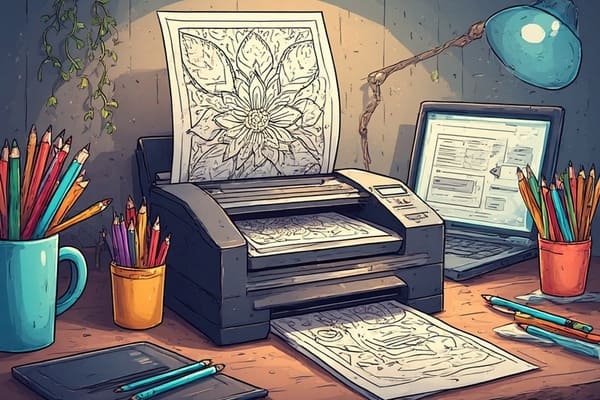
Coloring pages, whether they are of superheroes, animals, or fantasy worlds, are a great way to get kids or adults to be creative. However, when trying to get a good quality printout of a coloring page, if there are print settings that are wrong, it can lead to blurry images or wasting ink and ruining the experience. This article considers the best printer settings that will produce coloring pages that are crisp, clear and full of vibrant colors, whether coloring is an experience for children or adults. Once you have a relatively good printing setup, you can print themed coloring page designs for events, special occasions, or holidays easily
Why printer settings matter?
If it matters at all to return, the right printer settings matter to produce clear, detailed coloring pages. Themes such as, but not limited to, intricate designs of fantasy worlds or detailed superhero costume coloring sheets require higher-resolution printing to properly show off the thoughtfully designed fine lines and patterns of the coloring page design. However, wrong settings can lead to lower-quality prints as well as smudged or faded prints which will only frustrate those that are searching for "printable coloring pages," or "quality coloring sheets". The goal is to have as good of an experience as possible while drawing in and coloring the pages. For instance, designs like thin outlines of animals and mandalas will look super professional and great when printing them out, as well as have the ability to draw and color on them.
Selecting the Appropriate Paper
The paper selection matters greatly when printing out your work. Standard copy paper 20 lb, works for simple layouts, but for bright and colorful superhero, coloring pages, or fantasy coloring pages, you will want to print on heavier paper, such as 24-32 lb paper, or card stock. This thicker paper will provide durability, and prevent bleed-through if adding with markers. Matte paper works best for colored pencil or crayon coloring, glossy works best if using markers, and you want vibrant ink colors on more detailed animal or fantasy designs. You may want to look in the printer's manual for the paper types to avoid printer jams, and you can do a search such as “best paper for coloring pages.”
Ideal Print Settings for Coloring Pages
To achieve the best prints, it is ideal to adjust your printer settings before printing. To make life easier and to help you print perfect coloring pages, here is a simple checklist.
- Choose Best Quality Print Mode: Select "Best" or "High" quality in your printer settings to capture the fine details in costume designs, or the delicacies of fantasy backgrounds. While using this quality mode uses more ink, it ensures the lines print clearly.
- Change the Resolution to 300 DPI: 300 dots per inch (DPI) is the ideal resolution to achieve a print that is sharp, detailed and perfect for those intricate animal or mandalas for coloring.
- Select the Correct Paper Type: Select the paper type in the printer menu (e.g. matte, card stock) so that the inks can be dispersed correctly when printing, so ink does not smear.
- Change Color Options: For superhero or animals pages, use a 'Vivid' or 'Photo' color modes for dynamic, vivid coloring prints. For designs not to be colored in color like grayscale, select 'black and white' to start saving ink.
- Preview before printing: Always preview the file before printing to check the layout of the design to ensure it will fit on the page, and to ensure there are no cut-off lines to the image (especially when printing fantasy or large sheets of coloring sheets).
Troubleshooting Issues
When prints are blurry, check both the file resolution and ensure the file you’re printing is a high-quality image file (at least 300 DPI). For prints that look washed out (the color of the prints are faded), try cleaning the printhead on your printer or ink cartridges that are low on ink. Most people get paper jams on their printers when the paper set is not set up right. When using a heavyweight paper, check your printer menu to confirm the paper type is set correctly. For users who are eco-conscious, draft mode will save ink on simple designs, but should be avoided on detailed fantasy or superhero pages because you won’t get the best print, and that’s what we want.
Using the correct printer settings can take your pages from printable coloring pages to vibrant, pop off the page designs that look professional. By using high-quality modes and paper, and the correct resolution, you will get the best results for page leaf images whether they are animal, superhero, or fantasy world pages. With a little adjustment, your printer will be able to produce perfect pages for you every time.